The Version Notebook: A Calm Monthly Driver Check for British Gaming PCs

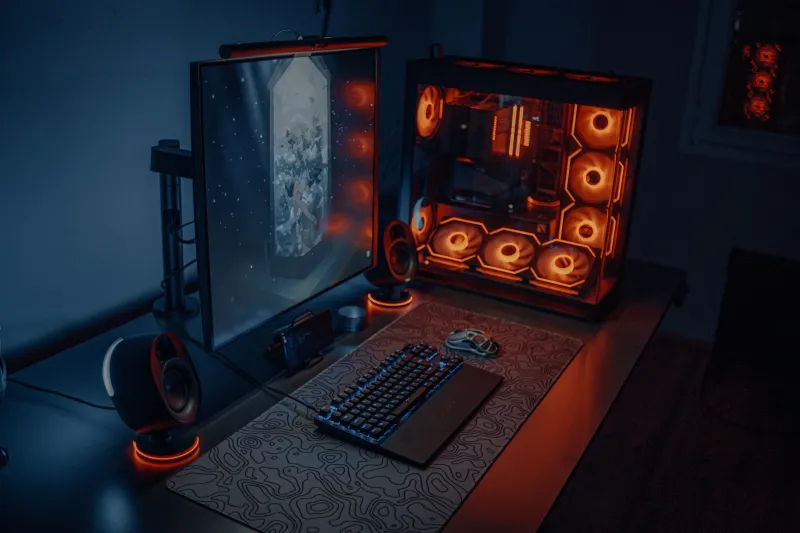
Photo: notandvm, Public domain, via Wikimedia Commons
Sunday evening, the roast has settled, the kettle is on, and your gaming PC has been quietly fine for weeks. Then a match crashes to desktop, or the screen goes black for two seconds, and you spend the rest of the night wondering whether the GPU is dying. Usually it is not. More often it is a driver, a chipset package, a firmware update or a BIOS change you installed weeks ago and forgot about. The fix is not a paid driver-updater tool or a panic reinstall. It is a short, boring monthly check — and a notebook.
Why a monthly audit beats constant tinkering
Plenty of UK builders update nothing until something breaks. That is understandable. Driver releases arrive constantly, most of them change very little, and a working machine is a nice thing to leave alone. The problem is that when a crash finally arrives, you have no baseline. You cannot remember whether the GPU driver changed last Tuesday or last March, and you certainly cannot remember which BIOS version is installed.
A ten-minute check once a month gives you a known-good reference point. It is not about having the newest software. It is about knowing what you are running, changing one thing at a time, and being able to get back to the previous state without an evening of guesswork. Think of it as a service book for the PC, not a race to install every release.
First, build the escape hatch
Before you touch anything, create a restore point in Windows and write down your current versions. The restore point is not a full backup, but it is a quick way back from a bad driver or a messy chipset install. Type “create a restore point” into the Start menu, open System Properties, and make one. Give it a name you will recognise, such as “before November driver check”.
Then open a plain text file — Notepad is fine — and note the following: GPU driver version, motherboard chipset driver version if you know it, BIOS version, and SSD firmware version if the drive maker provides one. Save it in Documents and add the date. A phone note works too. The exact format does not matter. What matters is that next month you can compare the numbers instead of relying on memory.
The GPU driver is the one worth checking
For most gaming PCs, the graphics driver is the only component that genuinely benefits from regular attention. Nvidia, AMD and Intel all publish release notes, and those notes tell you whether a release is aimed at a new game, a security issue, a specific bug or general housekeeping. If your current driver is stable and the new one offers nothing you need, skipping it is a perfectly sensible choice.
When you do update, use the official app or the manufacturer’s website. Avoid paid driver-updater utilities and “one-click optimiser” suites. They often bundle older packages, add startup clutter and make rollback harder. A clean install option is useful if you are chasing a stubborn issue, but it is not required every month. Save the display driver uninstaller tools for the times when a normal uninstall and reinstall has already failed.
After updating, play one game for fifteen minutes. Not a benchmark marathon — just enough to confirm the machine still behaves. If it crashes, stutters or shows artefacts, roll back to the version in your notebook. Most GPU vendors keep recent drivers available for exactly this reason.
Chipset, storage firmware and BIOS: check quarterly
Chipset drivers matter, but they do not need monthly attention. AMD and Intel both publish packages through motherboard vendors, and the release notes usually explain whether a fix applies to your board. If the machine is stable, checking every three months is plenty. The same goes for SSD firmware. Samsung Magician, Crucial Storage Executive and Western Digital Dashboard all show the current firmware version and whether an update is available. Read the notes before flashing, and do not update a drive that is working perfectly if the release only adds features you will never use.
BIOS updates are the ones people rush into and later regret. They are worth doing for a known security fix, a CPU compatibility issue or a memory stability problem. They are not worth doing because a new version appeared on a Tuesday. Check the motherboard vendor’s page, read the release notes, and note the current version before you start. Do not flash during a thunderstorm or when the household is likely to trip the breaker. A short power cut in the middle of a BIOS flash is one of the few ways to turn a working PC into a paperweight.
What to ignore, and what to leave alone
Ignore anything that promises to update all your drivers in one go. Ignore registry cleaners. Ignore software that adds a permanent tray icon and a monthly subscription for the privilege of downloading the same packages you can get from the manufacturer for free. Windows Update already handles some chipset and storage items, and the rest can be checked manually without much effort.
Also ignore the urge to update everything on the same night. If you install a GPU driver, a chipset package, a BIOS update and a new SSD firmware in one sitting, you will have no idea which one caused the problem when something goes wrong. One change, one test, one note. That is the whole method.
The ten-minute checklist
- Create a Windows restore point and name it with the month.
- Open your version notebook and write down the GPU driver, BIOS and SSD firmware versions.
- Check the GPU driver release notes. Update only if there is a reason.
- Once a quarter, check chipset drivers and SSD firmware. Once or twice a year, check BIOS notes.
- After any update, play a game for fifteen minutes and note the result.
- If something breaks, roll back to the version in your notebook before trying anything more drastic.
That is it. No subscription, no magic tool, no drama. The goal is not to have the newest driver on the street. The goal is to know what is inside your PC, to change it deliberately, and to have a way back when a release misbehaves. In a British winter, with the heating on and the evenings long, a quiet ten minutes on a Sunday is a much better use of time than a midnight panic reinstall.