Two Machines, One Monitor: Wiring a Work Laptop and a Gaming PC Into a Single Small Desk

Photo: B jonas at English Wikipedia, CC0, via Wikimedia Commons
There's a specific kind of misery in finishing work at 17:30 and then spending four minutes unplugging a DisplayPort cable, a USB hub and a headset dongle so you can play something. It's not the time, it's the ritual. Do it twice a day for a year and you'll start resenting the desk itself.
The good news is that this problem is genuinely solved now, and mostly for under £100. The bad news is that half the KVM switches on sale in the UK quietly cap your framerate at 60Hz and don't mention it until you've already drilled a hole in the desk.
Why the unplugging ritual has to go
Beyond the faff, hot-plugging a display cable is the fastest way to make Windows reshuffle every window you had open. Displays re-enumerate, the desktop resolution negotiates from scratch, and your carefully arranged browser tabs end up stacked on the wrong screen. A good switching setup doesn't just save time — it stops your PC from forgetting where everything was.
There's also the wear-and-tear argument, which people overstate. A DisplayPort connector will survive thousands of insertions. Your patience won't.
Three ways to do this, ranked by faff
Option one: the monitor does the work. Most 1440p gaming monitors have two or three inputs and a USB hub built in. Plug the desktop into DisplayPort, the laptop into USB-C or HDMI, and use the monitor's input button. Then add a cheap two-port USB switch (£15–£25) between the peripherals and each machine. Total cost: about £20. Total downside: two buttons to press instead of one, and the monitor's built-in hub is often USB 2.0 and flaky.
Option two: a proper KVM. One box, one button, or even a hotkey. Keyboard, mouse, headset and display all follow you. A decent two-port DisplayPort KVM with genuine USB 3 passthrough runs £60–£110 in the UK. This is the answer most people actually want.
Option three: a USB-C dock for the laptop plus a shared monitor. If your work laptop is a Dell, HP or Lenovo, a second-hand dock from CeX or eBay is £40–£60 and gives you one-cable docking. Pair it with a USB switch and you're done. Best if your employer has already standardised on a dock family and you can borrow the same one.
Bandwidth: the bit everyone gets wrong
Here's the number that matters. 1440p at 165Hz needs somewhere in the region of 12–13Gbps of display bandwidth. That is uncomfortably close to the limit of a lot of cheap switching hardware.
HDMI 1.4 tops out well below that — roughly 1440p at 60Hz. Plenty of sub-£40 KVMs are still HDMI 1.4 internally while the listing shouts about 4K. DisplayPort 1.2 gets you to about 1440p at 144Hz, sometimes with colour subsampling. DisplayPort 1.4 is where you want to be.
USB-C on laptops adds its own wrinkle. DisplayPort Alt Mode usually runs on two lanes rather than four, because the other two are busy carrying USB data. That gives you roughly 13Gbps — enough for 1440p at 144Hz if the laptop and monitor both support Display Stream Compression. Without DSC, expect to drop to 100Hz or 120Hz. Check your laptop's spec sheet before you assume, and be pleasantly surprised if it does more.
If you want 1440p at 240Hz over a shared link, you're into DisplayPort 2.1 territory and the price jumps hard. Be honest about whether you need it.
Cables, lengths and the small-desk problem
Passive DisplayPort cables are only reliable to about two metres at high refresh rates. Beyond that, artefacts and dropouts creep in — usually described as 'the monitor flickers sometimes', which is the hardest fault in the world to diagnose. Buy a certified cable, keep it short, and if you genuinely need four metres, buy an active or fibre-optic one rather than chaining two passive cables together.
USB 3 is worse. Passive USB 3.0 is specified to about three metres and in practice you want less. A KVM with a 1.5m cable to each machine is a much better bet than one with a 3m cable that introduces random disconnects mid-game.
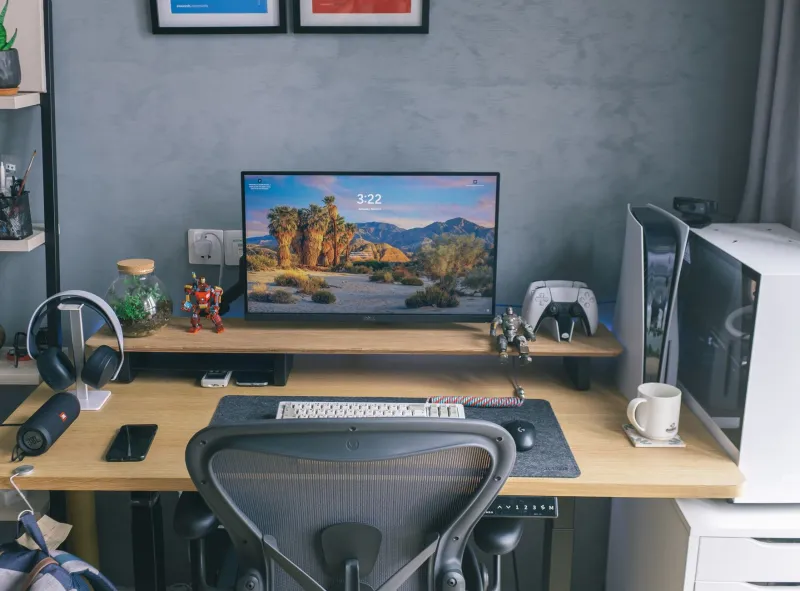
On a narrow desk, the physical layout matters as much as the electronics:
- Get the monitor on an arm. A gas-spring arm reclaims the entire footprint of the stand, which on a 120cm desk is the difference between usable and cramped.
- Mount the KVM under the desk. A strip of 3M Dual Lock or two screws, and it's out of the way with the cables routed behind.
- Stand the laptop vertically. A £12 stand, lid closed, dock cable trailing off the back.
- Buy one bag of Velcro ties and actually use it. Cable mess is what makes a small desk feel smaller.
Buying in the UK without getting stung
Check the marketplace seller before you check the price. A £35 KVM from a marketplace seller with no UK returns address is a £35 lesson. Look for units that state the exact resolution and refresh rate per port — 'supports 4K' tells you nothing about whether 1440p at 144Hz works. Brands that publish real spec tables are worth the extra £30.
For docks, the second-hand business market is a gift. Ex-corporate Dell WD19S and Lenovo USB-C docks turn up constantly on eBay UK and CeX at a fraction of new price. They're built for hot-desking, which is exactly your use case. Just confirm the dock includes its own power supply — replacements cost nearly as much as the dock.
Avoid the £18 unbranded KVMs. They work, technically. Then the mouse stutters when the headset is plugged in, because everything is sharing one overworked hub controller.
A worked setup
A realistic, unglamorous build for a 120cm desk: a two-port DisplayPort 1.4 KVM at around £75, a 1.5m certified DP cable to each machine, a 1m USB-B cable to each, monitor on a £55 arm, laptop on a £12 vertical stand, and a £10 bag of cable management. Call it £165 and an afternoon. You press one button, everything follows, and you never crawl under the desk again.
The switching routine that actually stays clean
A few settings that save grief later. Set your laptop to 'do nothing' when the lid closes, so it doesn't sleep the moment you dock it. Pin your refresh rate per input rather than relying on auto-negotiation. Keep your headset on USB rather than 3.5mm — USB audio re-enumerates on switching, which takes two or three seconds, but it's more reliable than a shared analogue jack picking up coil whine from whichever machine is idle. And crucially, buy a KVM with EDID emulation if you can; it keeps the 'display' alive to both machines so Windows stops rearranging your windows every single morning.
Bottom line
This is one of the few upgrades where the payoff is entirely quality of life rather than frames per second. Spend £80 properly, measure your desk before you buy anything, and check the refresh rate spec with the same suspicion you'd apply to a used GPU listing. Your evenings will thank you.